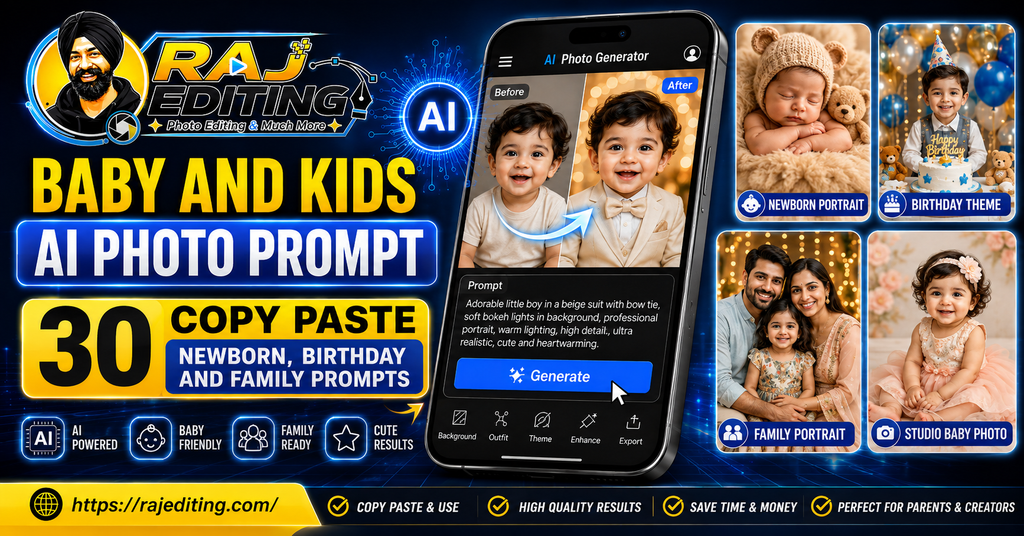
Baby and Kids AI Photo Prompt: 30 Copy Paste Newborn, Birthday and Family Prompts
A Baby and Kids AI Photo Prompt turns an ordinary phone photo of your child into a studio-style portrait while keeping their face exactly as it is. This page has 30 free prompts covering newborn studio setups, birthdays, festivals, outdoor play and family groups. Copy, upload the photo, paste.
Children’s faces are harder for these models than adult faces, because the features are softer and less defined, and the model has fewer edges to lock onto. That means the preservation line matters more here, not less. Check the result against the original carefully before you share it, since a slightly wrong child’s face is easy to miss and upsetting to notice later.
30 Baby and Kids AI Photo Prompts (Copy and Paste)
Tap copy on any prompt, upload the photo first, then paste. Use a sharp, well-lit photo where the child’s face is clearly visible and not in shadow.
Newborn and Studio
Soft studio setups with gentle lighting. Every prompt asks for safe, believable positioning with the baby fully supported.
1. Newborn Studio Portrait
Create a soft studio newborn portrait with the baby wrapped in a neutral cream muslin on a textured backdrop, lit by one large soft light from above. Keep the baby's face, features and expression exactly as in the uploaded photo. Extremely gentle lighting with no harsh shadows, natural skin tone.
2. Baby in Basket Setup
Place the baby in a woven basket lined with soft fabric on a plain wooden floor, lit by natural window light from one side. Preserve the baby's exact face and expression. Realistic fabric texture and safe, believable positioning with the baby fully supported.
3. Baby with Parents Hands
Show the baby resting in cupped adult hands against a dark neutral background with one soft light. Keep the baby's facial features and expression exactly as uploaded. Realistic hand anatomy and a clear scale relationship between the hands and the baby.
4. Floral Baby Portrait
Surround the baby with soft pastel flowers on a light muslin backdrop, photographed from directly above. Preserve the baby's face and expression exactly as in the original photo. Realistic petal texture with even diffused lighting and no colour cast on the skin.
5. Monochrome Baby Portrait
Create a black and white newborn portrait with soft directional light and deep gentle shadows on a plain backdrop. Keep the baby's features and expression identical to the uploaded image. Rich tonal range with visible skin texture, no smoothing.
6. Baby Sleeping Close Up
Create a close-up of the sleeping baby's face on a soft blanket with warm gentle window light. Preserve every facial feature and the expression exactly. Extremely fine detail on eyelashes and skin, with natural texture rather than an airbrushed finish.
Birthday and Party
Cake, balloons, confetti and themed setups. Bright and forgiving of a slightly imperfect source photo.
7. Birthday Cake Portrait
Place the child in front of a decorated birthday cake with lit candles, the candle glow lighting their face from below in a softly lit room. Keep their face, features and expression exactly as in the uploaded photo. Realistic candlelight falloff and warm colour.
8. Balloon Backdrop Portrait
Show the child in front of a pastel balloon arch backdrop with bright even lighting. Preserve their exact facial features and expression. Realistic balloon surface reflections and believable depth between the child and the backdrop.
9. Confetti Celebration Shot
Create a joyful portrait of the child with colourful confetti falling around them, frozen in motion, against a plain bright background. Keep their face and expression completely unchanged from the original. Realistic confetti motion with the child sharp and correctly exposed.
10. Themed Party Portrait
Place the child at a themed birthday party setup with decorations and props matching a single simple theme, in warm indoor lighting. Preserve their exact face and expression. Realistic prop detail without clutter competing with the subject.
11. Cake Smash Setup
Create a cake smash portrait with the child seated on a plain backdrop with a small cake, bright soft lighting and a joyful expression. Keep their facial features and expression exactly as uploaded. Realistic cake texture and believable, gentle mess.
12. Party Hat Studio Portrait
Show the child wearing a simple party hat against a bright solid colour backdrop with clean even studio lighting. Preserve their face and expression identical to the original photo. Crisp product-style lighting with natural skin tone.
Festival Kids Looks
Diwali, Janmashtami, Holi, Raksha Bandhan and Eid styling with respectful presentation.
13. Diwali Kids Portrait
Dress the child in festive Indian clothing and place them holding a small lit diya, with warm flame light on their face. Keep their face, features and expression exactly as in the uploaded photo. Realistic candlelight falloff and safe, believable composition.
14. Krishna Janmashtami Look
Dress the child in Krishna styling with a flute, peacock feather and traditional jewellery, against a soft painted backdrop with warm light. Preserve their exact facial features and expression. Detailed costume rendering with gentle, respectful presentation.
15. Holi Colour Portrait
Show the child in white clothing with colourful powder on their face and hands, in bright outdoor daylight. Keep their face and expression completely unchanged. Realistic powder texture with the child's features still clearly visible under the colour.
16. Raksha Bandhan Sibling Shot
Show two children together for Raksha Bandhan with a rakhi and decorated thali, in warm indoor light. Preserve both faces and expressions exactly as uploaded. Realistic scale between siblings and natural, unposed interaction.
17. Eid Kids Portrait
Dress the child in traditional Eid clothing with delicate detailing, in a decorated home setting with warm evening light. Keep their facial features and expression identical to the original image. Refined fabric detail and natural skin tone.
18. Independence Day Kids Look
Show the child in simple white clothing holding a small tricolour flag, in bright natural daylight. Preserve their exact face and expression. Respectful, clean composition with realistic fabric and accurate flag proportions.
Outdoor and Playful
Parks, beaches, puddles and flower fields with natural light. The most natural-looking group.
19. Park Golden Hour Portrait
Place the child in a park during golden hour with warm backlight through the trees and soft sun flare. Keep their face, features and expression exactly as in the uploaded photo. Realistic lens flare with the face still correctly exposed and sharp.
20. Beach Day Portrait
Show the child playing at the edge of the sea with bright natural daylight and gentle waves. Preserve their exact facial features and expression. Realistic water motion and wet sand texture, natural skin tone under strong sunlight.
21. Rain Puddle Fun
Create a joyful portrait of the child in a raincoat jumping in a puddle, with visible splash and overcast soft light. Keep their face and expression completely unchanged. Realistic water splash frozen at a fast shutter speed.
22. Flower Field Portrait
Place the child in a field of flowers with soft afternoon light and a gently blurred background. Preserve their exact face and expression from the original photo. Shallow depth of field with sharp facial detail and softly rendered blooms.
23. Autumn Leaves Portrait
Show the child among fallen autumn leaves with warm low sunlight and a few leaves caught mid-air. Keep their facial features and expression identical to the uploaded image. Realistic leaf texture and natural warm colour grading.
24. Bicycle Ride Portrait
Place the child on a bicycle on a quiet tree-lined street with soft evening light. Preserve their face and expression exactly as uploaded. Correct proportions between child and bicycle, realistic shadow contact with the ground.
Family with Kids
Multi-person prompts. Use a photo where every face is a similar size, because the model loses the smallest face first.
25. Parents and Baby Portrait
Create a family portrait of both parents holding their baby, in soft neutral clothing against a plain backdrop with gentle even lighting. Keep every face, feature and expression exactly as in the uploaded photo. Realistic group composition with natural spacing.
26. Family on the Floor
Show the family sitting together on a rug at home in casual clothing, with warm natural window light. Preserve every face and expression exactly as uploaded. Honest unposed feel with realistic interaction and natural skin tones throughout.
27. Grandparents and Grandchild
Create a portrait of grandparents with their grandchild, in soft warm indoor light. Preserve every facial feature, including the grandparents' wrinkles and age, exactly as in the original. Do not smooth skin or make anyone look younger.
28. Outdoor Family Golden Hour
Place the family together outdoors during golden hour with warm backlight and a softly blurred background. Keep every face and expression identical to the uploaded image. Balanced exposure across all faces with realistic rim lighting.
29. Siblings Portrait
Show two or more siblings together against a plain backdrop in coordinated but not identical clothing, with even soft lighting. Preserve every face and expression exactly. Natural sibling interaction and accurate relative sizes.
30. Festival Family Group
Create a family group portrait in festive Indian clothing in front of a decorated home entrance with warm evening light. Keep every face, feature and expression exactly as in the uploaded photo. Even lighting across all faces with realistic depth.
How to Use These Prompts
Every baby ai photo prompt above works the same way. Once you have done this once it takes under a minute.
Step 1: Pick the right photo
Use a clear, well-lit photo where your face is fully visible and not covered by sunglasses or heavy shadow. Avoid images that already have a strong filter on them, because the model has to fight that filter before it can apply anything new. A plain phone photo taken near a window gives better results than a heavily edited one.
Step 2: Open your AI tool
Open Google Gemini, ChatGPT or any image editing model that accepts an uploaded photo along with a text instruction. Free accounts work for all the prompts on this page, though paid tiers usually return results faster and at a higher resolution.
Step 3: Upload the photo first
Upload the image before you paste the prompt. When the photo goes in first, the model treats your text as an edit instruction rather than a request to generate a new picture from scratch. This one habit fixes most identity problems.
Step 4: Paste the prompt and generate
Tap the copy button on any prompt above, paste it in, and send. Do not add extra words the first time. Run it exactly as written so you can see what the prompt alone produces before you start changing it.
Step 5: Fix one thing at a time
If something is wrong, send a short follow-up naming only that one problem, such as asking for the eyes to match the original more closely. Changing several things in one message is the most common reason the result drifts further away.
How to Write Your Own Prompt
Every prompt on this page follows the same six-part order, and the order matters because these models weight the opening of an instruction more heavily than the end.
Subject
Who is in the photo. Say “me” or “the child” so the model knows it is editing rather than generating from nothing.
The change
The single main thing you want different. One idea only. Three changes at once gives you three half-finished changes.
Style and mood
Cinematic, editorial, documentary, hand painted. This word tells the model which whole visual tradition to draw from.
Lighting
Direction and quality. Soft morning light from the left. Hard side light. Vague lighting is why most results look flat.
Background
One clear line. Over-describing here pulls the model’s attention away from your face.
What must not change
The most important line, and the one people delete when shortening a prompt. Without it the model quietly redraws your face.
Common Mistakes That Ruin the Result
Leaving out the preservation line
This is the single biggest cause of a result that does not look like you. These models generate a new image guided by your photo rather than editing pixels directly, so without an explicit instruction to keep your face unchanged, they will quietly adjust your jawline, skin tone or eye shape. Every prompt on this page ends with that line for a reason. Never delete it.
Writing a vague prompt
“Make this look better” gives the model complete freedom, and it will use that freedom in a direction you did not intend. Naming the outfit, the light and the background removes the guesswork. A longer, specific prompt almost always beats a short one in this kind of editing.
Changing five things at once
When a first result is close but not right, most people rewrite the whole prompt. That throws away everything that worked. Send one short correction instead, wait for the result, then send the next. Slow, single corrections land far closer than one big rewrite.
Using a low quality source photo
A blurry, dark or heavily compressed photo gives the model very little facial information to work with, so it fills the gaps by inventing detail. That invented detail is what people describe as the result “not looking like them”. Start with the sharpest photo you have.
Expecting identical results every time
These models are not deterministic. The same prompt run twice returns two slightly different images. This is normal and not a fault in the prompt. If the first attempt is off, simply run it again before you start editing the wording.
Ignoring the hands
Hands remain the weakest area for image models, especially in complex poses. If your photo has hands near the face or fingers overlapping, expect to run the prompt a few times. Choosing a photo where the hands are relaxed or out of frame avoids the problem entirely.
Not checking the child’s face carefully enough
Adult faces have strong defined features that make errors obvious. Children’s faces are softer, so a model can shift a nose or an eye shape and the result still looks like a plausible child. Open the original beside the result and compare feature by feature before sharing anything.
Frequently Asked Questions
Is this baby ai photo prompt free to use?
Yes. Every baby ai photo prompt on this page is free to copy and use. You do not need a paid subscription, and there is no signup on this site. The AI tools themselves have free tiers that handle all of these prompts, though paid plans return results faster and usually at a higher resolution.
Will the AI change my face?
It can, and that is exactly what the last line of every prompt prevents. These models generate a new image guided by your photo rather than editing the original pixels, so they need an explicit instruction to keep your facial features unchanged. If your face still shifts, send a short follow-up naming the specific feature that is wrong.
Which AI tool works best with these prompts?
Google Gemini holds children’s faces more reliably, which matters more here than anywhere else on this site because soft features are easier to get subtly wrong. Use Gemini for anything involving a child’s face.
Can I use the results on Instagram commercially?
For personal posts, yes. For paid or client work, check two things first. Free tiers of some tools add a visible badge to the output, and an invisible watermark is often embedded regardless of tier. Also remember that permission from the AI tool does not override anyone else’s copyright or likeness rights.
Why does my result look different from the example?
Because these models are not deterministic and because your source photo is different from the one used to test the prompt. Lighting, angle and image quality in your original all affect the output. Run the prompt two or three times before deciding it does not work.
Do these prompts work in Hindi?
You can write prompts in Hindi or Hinglish and most current models will understand them. In practice, English prompts return more consistent results for this kind of detailed image editing, because the models were trained on far more English descriptions of lighting, fabric and camera terms.
How often is this page updated?
New prompts are added regularly, and existing ones are rewritten when a model update changes how they behave. AI image tools change quickly, and a prompt that worked perfectly three months ago can start producing odd results after an update.
Is it safe to upload photos of my child to an AI tool?
Read the privacy policy of whichever tool you use, because terms vary and some services train on uploaded content by default. Many offer a setting to opt out of training. If you are uncomfortable, avoid uploading photos of children entirely. This is a decision worth making deliberately rather than by default.
Why do the baby’s features look slightly different?
Newborn features are soft and low contrast, so the model has less edge information to anchor to and fills gaps with an average infant face. Use the sharpest, best-lit photo you have, and add a follow-up asking for the exact nose and eye shape from the original.
More Prompt Collections
- Saree AI Photo Prompts
- Attitude Boy AI Photo Prompts
- Romantic Couple AI Photo Prompts
- Diwali AI Photo Prompts
- AI Photo Restoration Prompts
Every prompt on this page was written and checked by hand before publishing. If a baby ai photo prompt stops working after a model update, use the contact page and it will be corrected.